![tatari-lockup-black.png]](https://tatari-5147324.hs-sites.com/hs-fs/hubfs/tatari-lockup-black.png?height=40&name=tatari-lockup-black.png)
This article contains the following:
- Overview
- Navigating Your Creative Library
- Generating a Creative Code
- Formatting Your Video Before Upload
- Uploading a Video
- Creative Quality Control Process
- Getting Your Video “On Air”
Overview
The Creative Library allows you to easily manage all creative assets directly in your Tatari dashboard. No more logging into our third-party platform, Extreme Reach—we’ll coordinate with them to ensure successful quality control and delivery of your creative to each network or publisher.
Within your Creative Library, you’ll be able to:
- Easily generate a creative code to use for tracking and reporting
- Upload your creatives in a few simple steps
- See when your creative is in quality control review and when it’s ready to air
- Archive creative assets you no longer wish to reference from your creative homepage
Navigating Your Creative Library
My Creatives
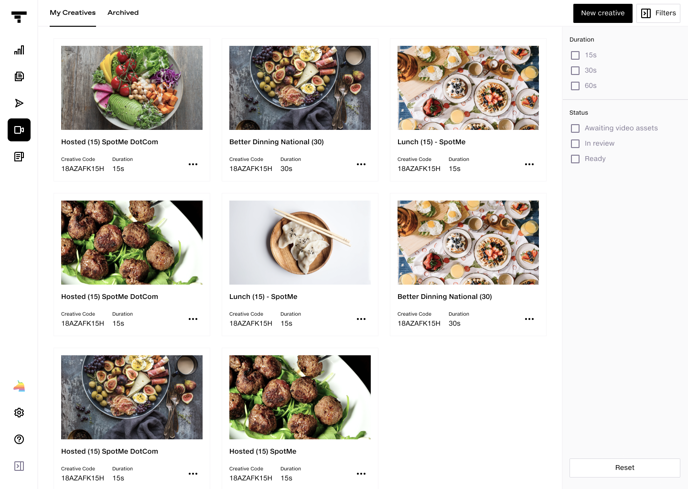
Under My Creatives, you can see all of your creatives that are paused or actively on air.
Filters
You can filter them by Duration (15s, 30s, 60s) and Status (Awaiting video asset, In review, and Ready).

Statuses
- Awaiting Video Asset: Once you have a creative code, you’ll see a placeholder asset in your dashboard where you can now upload the respective video.
- In Review: Your creative is in quality control review with our third-party ad-server vendor, Extreme Reach (ER).
- Ready: Your creative has passed quality control and our team is now sending it to networks for S&P approval. In the meantime, we'll contact you to discuss getting your creative(s) on-air.
Archived
Here you can see all archived creatives that you no longer wish to reference from My Creatives.

Please note that archiving creatives will not automatically take them off the air, remove them from our third-party vendor platforms, or stop quality control reviews. Reach out to mediaops@tatari.tv if you didn’t upload the correct creative.
To archive an asset, navigate back to My Creatives and select Archive from the dropdown next to the creative.

To unarchive an asset, click here:

Generating a Creative Code
Every creative asset requires a creative code for tracking, processing, and reporting. To create a code, click here:

If you’re airing on Peacock or require an Ad-ID (a different type of creative code), please reach out to mediaops@tatari.tv.
Then select the Creative Type.

Linear refers to networks (e.g. E!, A&E) and Streaming refers to publishers (e.g. Hulu, Tubi). When selecting Linear Only or Both, you may incur standard third-party fees so it’s important to select the correct type before you upload your asset. There are no fees to upload your creative for streaming campaigns. If you’re unsure of which type, please ask your Client Services Manager or Media Buyer to avoid unnecessary charges.
If you are only airing on streaming platforms to start, select Streaming Only. If you decide to use this creative on linear TV at a later date, please reach out to mediaops@tatari.tv to help set up your asset appropriately. You do not need to email us if you start with Linear Only then decide to use this creative on streaming platforms. We’ll automatically handle getting your creative ready.
Next, add a creative name.

We recommend following this naming convention to best differentiate among your creatives: Concept Description - Unique Quality (Duration).
For example, instead of using Founder - V1 (30), you can use Founder - 20% Off End card (30). Including a unique quality within the title (e.g. 20% Off Endcard) will help distinguish creatives in the case that you have several versions of the same theme.
Lastly, select the duration of your video (in seconds).

Click Generate Code then jot down the creative code you see on your screen. You’ll need it for your slate card (only if you’re running linear campaigns).

Important: Before you continue to upload an asset, see these instructions on formatting your video and slating.
Formatting Your Video Before Upload
Before uploading any videos, please follow the specs outlined in the Extreme Reach Master File Specifications sheet. Additionally, if you are airing on linear TV, please also see the instructions below on slating your video.
Slating
Networks (not publishers) require you to “slate” each creative, which simply means adding an intro card to the video with important information (see example below).
Please upload your videos without slating and let Extreme Reach do it for you. The fees are as follows:
$20 per slate
$40 for veil watermarking (needed for Kantar tracking)
$50 for both
If you would like to slate your own videos, please ensure that it is done properly and that there are no formatting errors or typos to avoid a fee (example below).
If your creative agency adds the slate card, make sure it includes the following:

- ISCI - Also known as “Creative Code” (this is generated in your Creative Library)
- Title - Unique creative title (This should be the same name that you entered when you created the code in your Creative Library)
- Length - Duration of the creative in seconds
- Audio - Type of audio, e.g. Stereo
- Agency - This can be Tatari or the name of your creative agency
- Advertiser - Your company name
- Date - The date the creative was slated
Please follow the example below:

Things to Watch Out For
Implied Interactivity
Implied Interactivity is when your creative has an element that looks like a button, overlay, animation or other element that seem like you can interact with it. Certain streaming networks may reject your creative if it contains an element that implies interactivity.
Letterboxing
Letterboxing is when your creative has black space either above and below it (example below) or on both sides of it. If your creative is designed with letterboxing, it may be rejected by certain streaming networks.
Uploading a Video
To upload your video, click on the asset placeholder.

Then either select a file or drag and drop one from your computer.
You only need to upload an HD format. Extreme Reach only accepts .mpg, .mov, .mxf and .mp4 files.
Note: Extreme Reach charges a $50 conversion charge per creative for .mp4 files.
If the wrong creative was uploaded accidentally, email mediaops@tatari.tv and we’ll work with Extreme Reach to reset this for you. Please note that there will be additional costs if the creative was already sent to networks or was watermarked (learn more).
After you upload, you’ll see the placeholder in your Library marked as In Review.

If you upload the wrong video or a video with the incorrect creative code or slate card, please reach out to mediaops@tatari.tv for next steps.
Re-uploading a Video
Our Media Ops team may instruct you to re-upload a new version of your video (with the same creative code). To re-upload, click on the creative in your library then Re-upload Video:

Third-Party Fees
Slating creatives
If you'd like our third-party vendor (Extreme Reach) to slate your creatives for you, you'll incur a $30 fee per creative.
Sending creatives to networks
Each time you upload a new video to air on linear TV, networks charge $30 to receive your video. For example, if you air on both E! and A&E, you’ll be charged $60 total. We receive discounts for sending creatives to networks under the same family so the final charges will vary depending on your media plan.
Watermarking the creative
Each creative is sent to a third party (called Kantar) to watermark (or encode) the creative. This step is required by networks. The fees are $400 per month plus a one-time fee of $60 per creative.
Creating an Ad-ID
Some networks (e.g. Peacock) require an Ad-ID instead of a Creative Code. We’ll work with you to create this outside of your Creative Library. The Ad-ID organization charges $33 per code and Extreme Reach charges $125/hour for traffic time (this usually takes ~30-45 minutes). So for one creative, you might anticipate $95 - $130.
We’ll invoice you each month for all third-party costs.
Creative Quality Control Review
Once your asset is uploaded in your Creative Library, the quality control process begins with Extreme Reach. This can take up to a few hours.
If your creative does not pass quality control, our team will email you with more details. Please do not re-upload any videos until you receive further details. There are no additional charges if you need to re-upload the creative.
Getting Your Video “On-Air”
Once the creative is Ready (i.e. it passes quality control):
- The creative is sent to the network for final Standard and Procedures (S&P) approval. If any issues arise, our team will reach out to you.
- Someone from the Tatari team will contact you with next steps for getting the creative(s) on-air.