![tatari-lockup-black.png]](https://tatari-5147324.hs-sites.com/hs-fs/hubfs/tatari-lockup-black.png?height=40&name=tatari-lockup-black.png)
Plan Overview
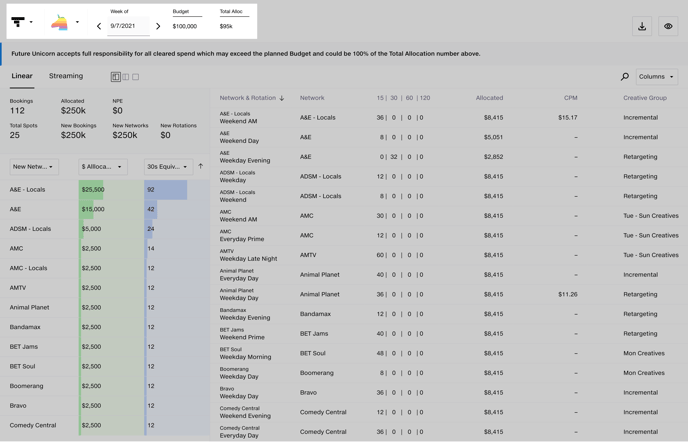
In the top left corner, you can see your weekly plan budget as well as the dates for that plan. You can navigate between plan weeks and see your budget for the corresponding week. The plan overview includes both Linear and Streaming.
Plan Breakdowns
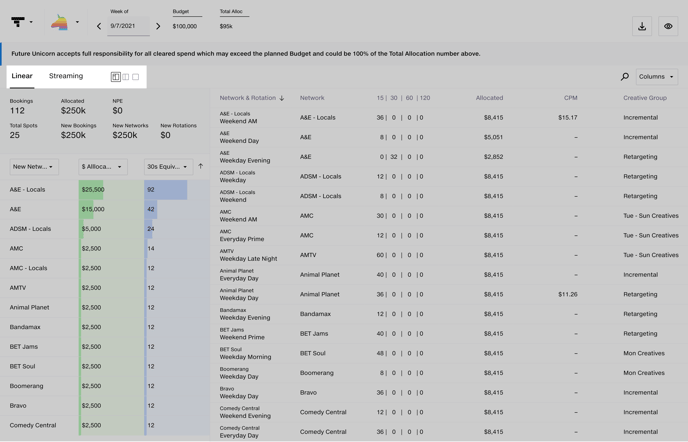
On the far left hand side of your screen, you can switch between your Linear and Streaming plans. You can also change your plan layout by selecting one of the icons in this section.
Big Numbers
At a quick glance, you can better understand bookings and inventory breakdown. These numbers are dynamic and will automatically update as you toggle between Linear and Streaming. You can see the number of bookings, the total number of spots, the dollar amount of budget allocated towards bookings, the dollar amount allocated towards NPE, the dollar amount allocated towards new bookings, the dollar amount allocated towards new networks, and the dollar amount allocated towards new rotations.

Plan Bookings

Personalize Your View
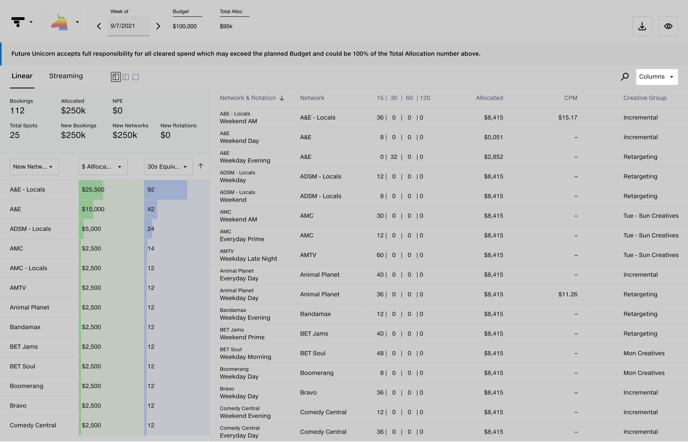
Hide or show the columns you'd like to see in order to view the parts of your plan that are the most important to you. Consider showing columns like Network, Day of Week, CPM, and Cleared Spend to always see the most important data for your bookings
Side Bar Breakdown
View breakdowns of important data in your media plan, such as Networks, Creative, or Day of the Week. When you select one of the data breakdowns, your media plan on the right will automatically filter your bookings so that you only view relevant media.

Download or View Your Plan in a Spreadsheet
If you'd like to download or view your plan in a spreadsheet, simply click the corresponding download or view icon highlighted below.
