![tatari-lockup-black.png]](https://tatari-5147324.hs-sites.com/hs-fs/hubfs/tatari-lockup-black.png?height=40&name=tatari-lockup-black.png)
Set your budget
Start by entering your budget for the week. You can locate your budget in the upper left hand corner of the screen. If you have multiple clients, you can also double-check that the client is correct by verifying the logo which is inline with the budget.

Select the bookings you want to keep
Review your media plan for the previous week and select the checkboxes for the bookings that you want to include in your new media plan. We recommend selecting bookings that met your performance goals, as well as those that almost met your performance goals.

Open the action center
Using the Action Center, you can copy, move, and edit all selected bookings at one time. First, click the Action Center icon, highlighted below. After you click on the Action Center icon, the Action Center will appear.
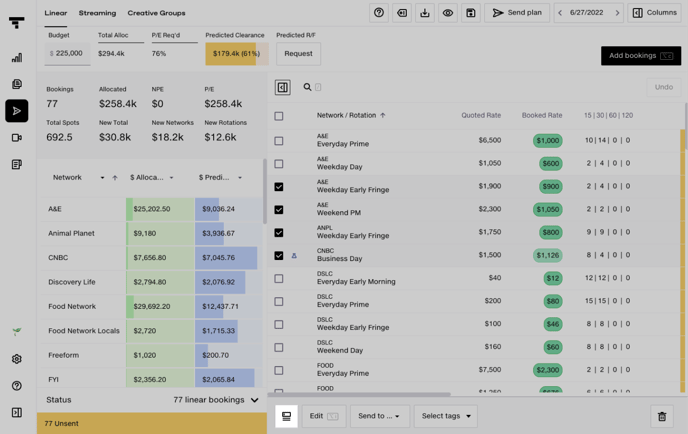
After you click on the Action Center icon, the Action Center will appear.

Select Copy: Type "Copy" into the search bar. Then select copy to move your inventory to the new week's media plan.
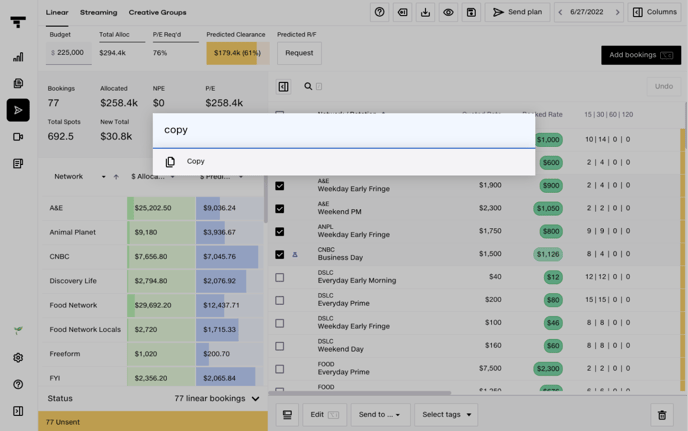
Double-Check Network and Rotation Information
After you select Copy, a new modal will appear. Here you can double-check information about the Network and Rotation, as well as add in the date for your new media plan.
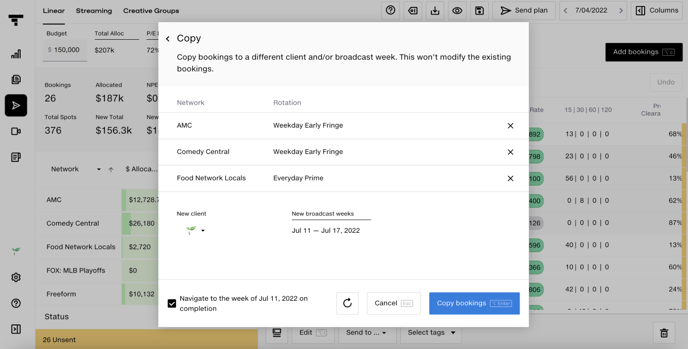
Select the date for your new media plan
Enter the date for the new media plan.
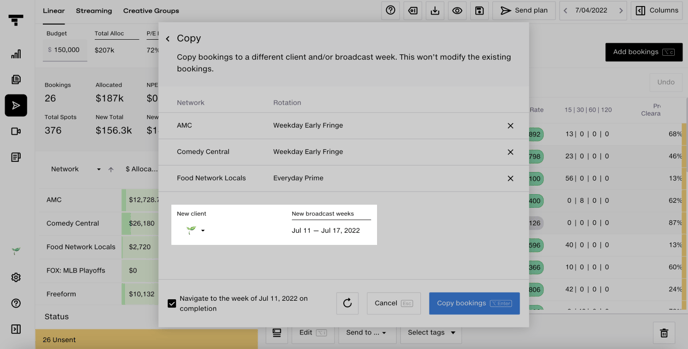
Select Navigate to destination week
Make sure the "Navigate to destination week on completion" checkbox is selected. This will ensure that you will be brought to your new media plan where you can confirm it was copied over correctly and begin making edits.
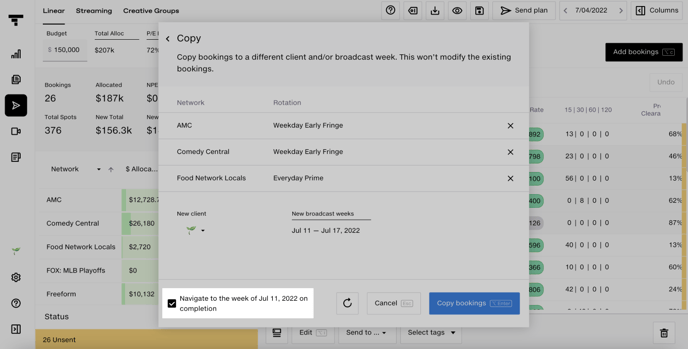
Copy Bookings
Select the Copy Bookings button to copy bookings over to your new media plan. If you have any Strategy Tags applied to your bookings, they will also be copied over. Tip: The Move function is not the same as the Copy function. If you select Move, your bookings will be removed from the original media week. If you select Copy, your bookings will reflect in both weeks.
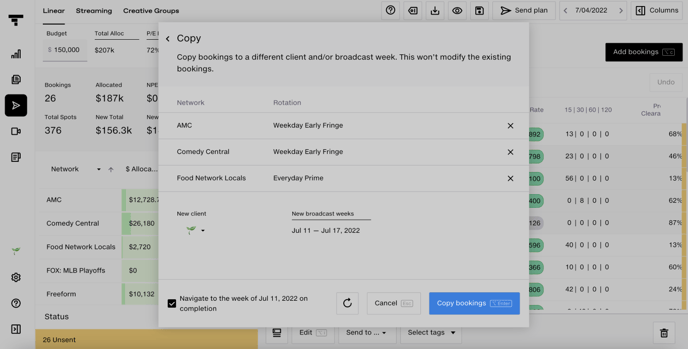
Add new bookings
Now that you've copied over the highest performing bookings, you need to add new bookings to make up for the bookings that weren't copied over. You can find new bookings by selecting Add bookings.

Navigate New Booking Inventory
You're now on the Inventory Selector screen where you can find new inventory for your media plan.
We recommend doing the following to look at new inventory:
1. Personalize your view
2. Filter by demographics
3. Order by performance
4. Find discounted inventory
Personalize your inventory selector
Hide and show the columns you'd like to see to view the parts of your plan that are the most important to you. Consider hiding columns that don't have metrics or demographics that you need.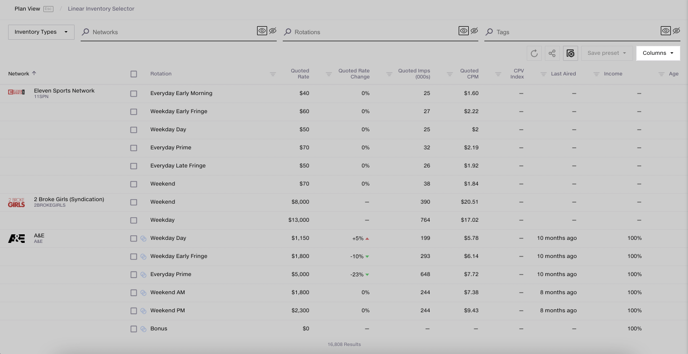
Filter by demographics
You can filter inventory by Income, Age, Gender, Education, and if a household has Children. Add filters for all demographics for your product.
Tip: Use Save Preset for quick access to these filters in the future.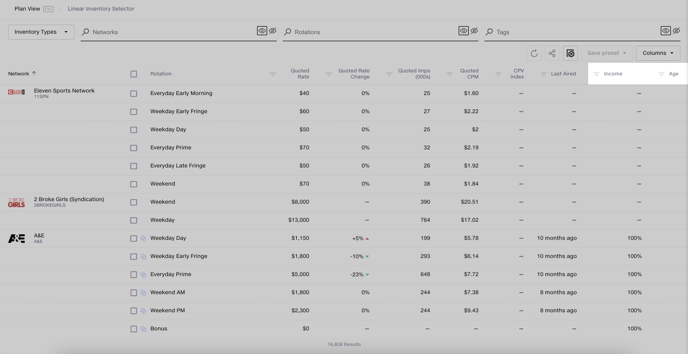
Ordering by performance
You can order the table by the metrics most important to your business.
Find discounted inventory
You can find discounted inventory with the quoted rate change. This number shows where the inventory price was discounted versus the last few weeks. Use this number along with the demographic and performance data to find deals to add to your plan.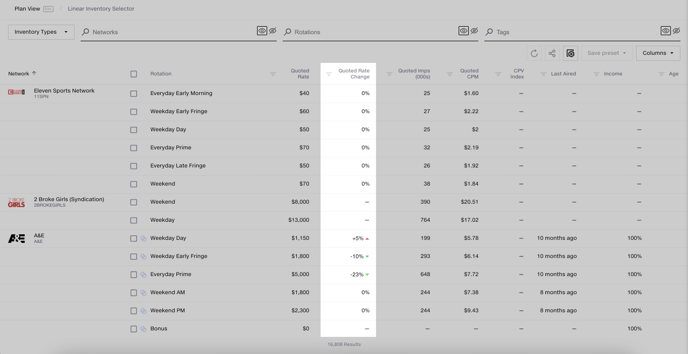
Select new inventory
Once you've decided which inventory you'd like to add to your plan, use the checkboxes to select, then add the inventory to your plan.
Determine Shave Rate and Add inventory to your plan
Enter any shave you want to include and add the inventory to your plan. Learn more about shave rates in the Knowledge Center. Repeat the steps to add more linear bookings to your plan.
Review your plan
We recommend performing the following steps to review your plan before sending it to your Tatari Media Buyer.
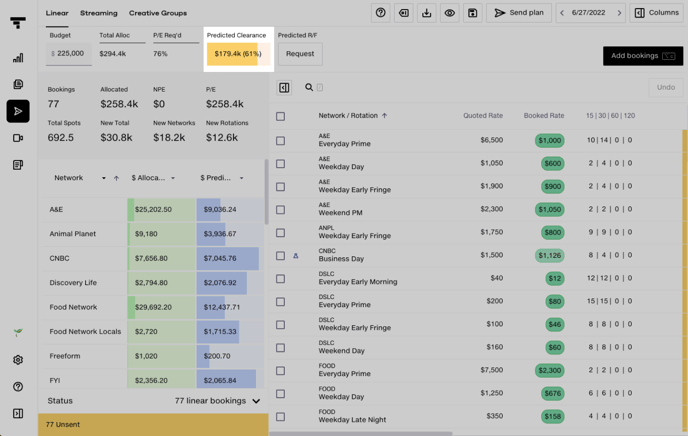
1. Check Predicted Clearance: The Predicted Clearance tool is designed to see what portion of your plan is expected to clear. To learn more about predicted clearance, visit the Knowledge Base. Tip: Predicted clearance is more useful if your plan is close to complete.
2. Check Pre-Checks: With the Pre-checks functionality, you can identify any common problems with your plan and helps you make sure the plan is ready to be sent. Learn more about different pre-checks in the Knowledge Base.

Reach out to your media buyer
Congrats! You've created a media plan! Email your media buyer to let them know that the plan is ready for review