![tatari-lockup-black.png]](https://tatari-5147324.hs-sites.com/hs-fs/hubfs/tatari-lockup-black.png?height=40&name=tatari-lockup-black.png)
Set your Budget
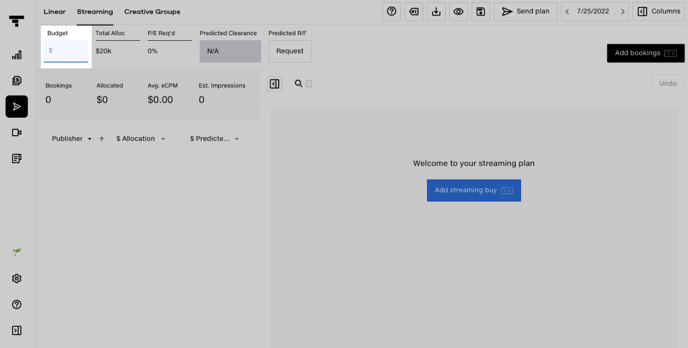
Start by entering your budget for the week. You can locate your budget in the upper left hand corner of the screen. If you have multiple clients, you can also double-check that the client is correct by verifying the logo which is inline with the budget.
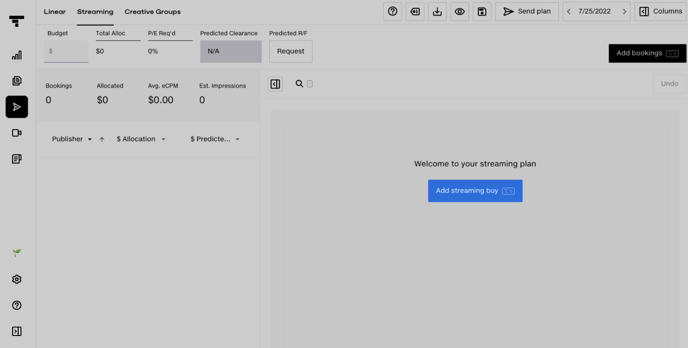
Click Add Streaming Buy
Click on the "Add Streaming Buy" button to start adding inventory to your streaming media plan.
Search for Inventory
If you want to explore all available inventory options, you can scroll through the various booking units. Use the search bar to find the inventory you want to add to your plan.  You can type in the name of a specific publisher, such as Hulu, or a desired demographics, such as Adults 25-30 [years old].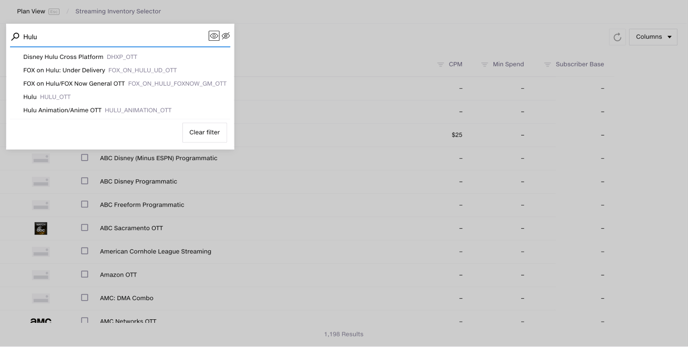
Once you've found the inventory you'd like to add to your plan, select it by clicking on the name of the booking unit. Please note, you must click on the name of the booking unit. Selecting the checkbox will not bring up the I/O Form.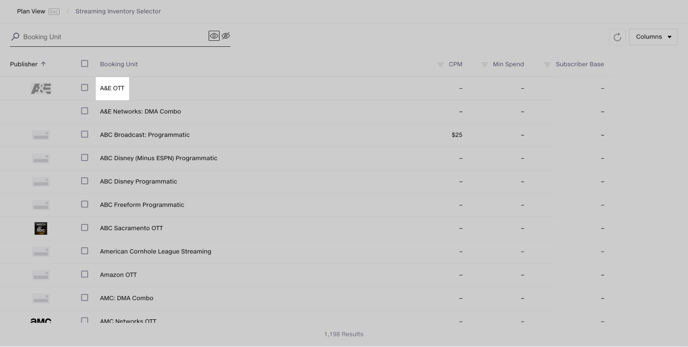
Complete the I/O Form
After you click on the name of the unit, the I/O Form will open.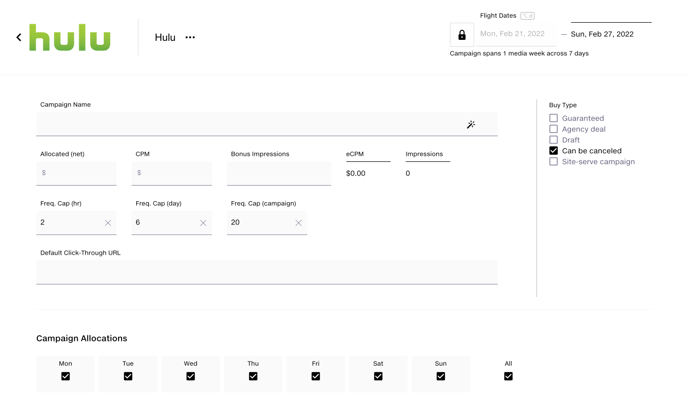
Fill in the Date
Start by filling in the flight date. Please note, you will only be able to fill in an end date up to the end of the last day of the calendar month. You will not be able to cross between quarters.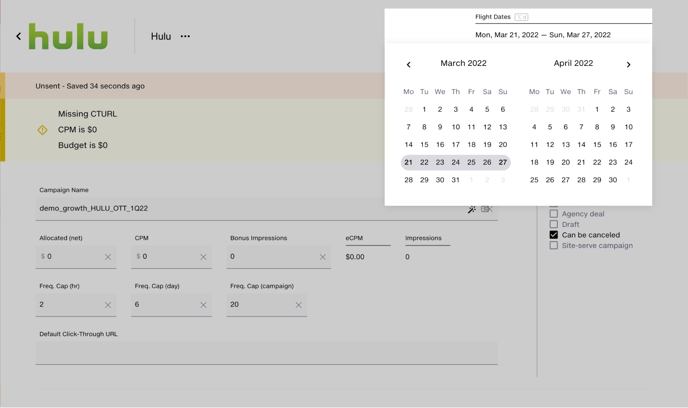
Name Your Campaign
Enter a name of your choice or click the magic wand to autofill a name. We suggest following this formula for naming: Name, publisher, targeting, quarter.
Example: demo_ABC_Disney_OTT_1Q22
Enter your allocated (net) spend and CPM
Enter the appropriate allocated spend amount, as well as the CPM. If you need help determining CPM, please reach out to your Tatari media buyer. eCPM and impressions will automatically populate. Impressions are how many times the ad will be served. The formula below is used to calculate impressions.
Impressions = cost divided by CPM 
Enter Bonus Impressions (if applicable)
If you have a predetermined package with a network or publisher, that was negotiated in an offline deal, input the amount of bonus impressions here. If you have bonus impressions, the eCPM will automatically update to reflect the bonus impressions. If you do not have bonus impressions, the CPM will be the same as the eCPM.
Enter the Frequency Caps
Frequency caps will automatically populate. They will be 2 per hour/ 6 per day/ 20 per campaign. The campaign is the life of the I/O and varies based on the time indicated in the I/O.
Enter the Default Click Through URL
Type in the URL where you would like to direct ad viewers. Please note, this needs to be in a specific format. If you are adding a new Default Click Through URL, please contact your Tatari CSM for assistance.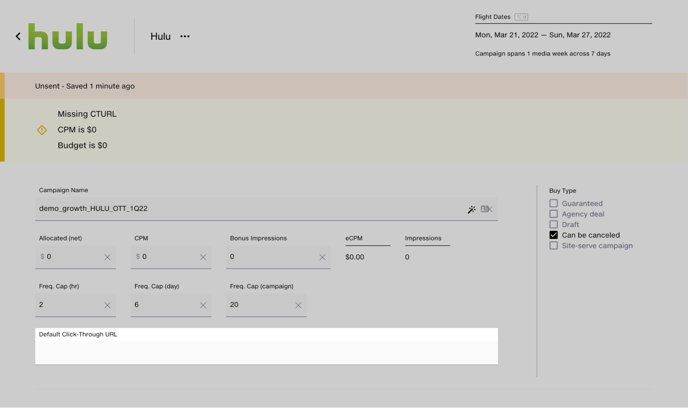
Double Check the Buy Side Guide
On the right side of screen is the Buy Type Guide
- Site-serve Campaign - A site-serve campaign means that the ad will not be served from a third party; therefore the publisher must have all assets to serve them locally. In order to gather measurement data, the publisher will need to passback the IP. This is how Tatari will be able to have IP matching for attribution. Check this box if you have a prenegotiated deal with the publisher. Examples include running a special campaign with Slate on Hulu. If you'd like more information on site-serve campaigns, please reach out to your Tatari team.
- Can't Be Cancelled - Please check the box for “can’t be cancelled”. This indicates that the inventory is a remnant, pre-emptible campaign (not guaranteed to air). Most inventory will fall under this category.
- Draft - If you want to fill in an I/O draft, but don’t want to send it yet, check this box.
- Agency Deal - If Tatari has a deal set up with a network or publisher like Hulu, we will request that you check this box so our partner knows how to classify the inventory. This is typically more common in linear than streaming.
- Guaranteed - Most inventory that Tatari buys is remnant, but if you have a specific deal with a publisher with guarantees, you will check this checkbox.

Enter your Campaign Allocation
Start by selecting the days of the week that you'd like to have your ads run. For streaming, we suggest running on all days. Streaming is an opt-in experience meaning that someone is definitely watching, no matter the time or day.
If you'd like to distribute spend equally, simply click on the wand icon. This will automatically distribute inventory evenly over the selected date range.
If you go over budget, a button will appear where you can increase total budget.
You can also select tags to add descriptors for your inventory.
If you have blackout dates, you can enter them here. Typically we don't recommend entering blackout dates, as with streaming you know a viewer is watching.
Please note, if you do enter blackout dates, those dates will be applicable for the entire duration of the campaign. You can not select blackout dates for just one week of a longer campaign.
Choose Your Creative Group
Select the creative group that you'd like to run. If you need assistance adding a new creative, please let your Tatari media buyer know.
If applicable, you can enter an override creative. Simply select the Override Creative Group and set the date for the override group. An example of when you might use this feature would be Black Friday. You may want to run a unique creative only on Black Friday which would override the usual creatives running that week.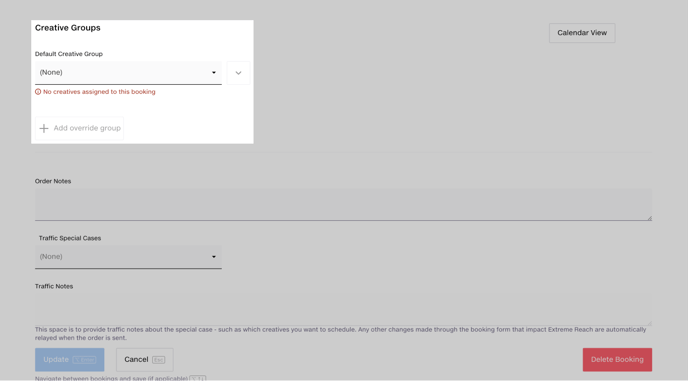
Order notes
If you want to send a message to the publisher, you can enter it in this space. Typically you will leave this space blank. An example of when you would message a publisher would be if you had an agreement with a publisher to run during a specific show.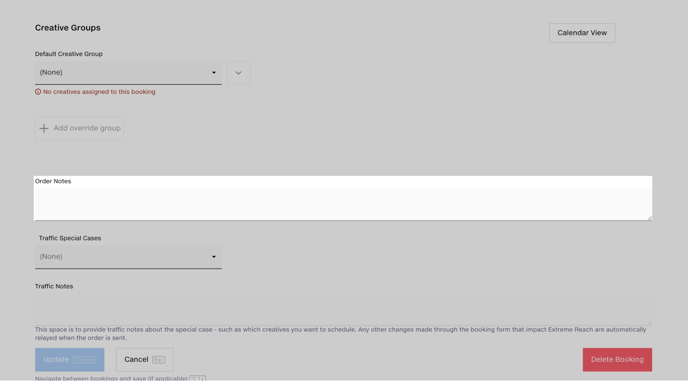
Traffic Special Cases
Typically you will leave this field blank.
Click Add to Plan
Click on the Add to Plan button to add the inventory to your media plan.
Repeat the Above Process
Repeat the steps listed above to fill in I/Os for new streaming inventory until you are satisfied with your media plan.
Review your plan
We recommend performing the following steps to review your plan before sending it to your Tatari Media Buyer.
1. Check Predicted Clearance: The Predicted Clearance tool is designed to see what portion of your plan is expected to clear. To learn more about predicted clearance, visit the Knowledge Base. Tip: Predicted clearance is more useful if your plan is close to complete.

2. Check Pre-Checks: With the Pre-checks functionality, you can identify any common problems with your plan and helps you make sure the plan is ready to be sent. Learn more about different pre-checks in the Knowledge Base.

Reach out to your media buyer
Congrats! You've created a media plan! Email your media buyer to let them know that the plan is ready for review.